Downloading and Installing cTrader at IC Markets
How to get cTrader at IC Markets in the right order: open an account on cTrader, confirm the CTID, install Desktop or use Web, and fix common login errors.
MT4 and MT5 are familiar to most forex traders, but they are not the only choice. For traders who want a more modern interface, fast execution, a Depth of Market panel and a cleaner layout, cTrader is worth a look. IC Markets is one of the brokers that offer this platform, and many Vietnamese traders search for its cTrader download link right after signing up.
Even so, downloading the software is only part of getting cTrader to work. The sections that follow cover how to get the IC Markets cTrader download link, how to open an account on the right platform, how to confirm the cTrader ID (CTID), how to install cTrader Desktop or use the Web and Mobile versions, and how to deal with common login errors.
What cTrader at IC Markets is
cTrader at IC Markets is the cTrader software used to trade on an account opened with IC Markets. The platform is developed by Spotware, has a modern interface and many analysis tools, and suits traders who like to see everything clearly on one screen.
Unlike MT4 and MT5 from the MetaTrader family, cTrader has its own ecosystem. Specifically, users usually log in with a cTrader ID, or CTID, then pick one of three versions: cTrader Desktop on a computer, cTrader Web in a browser or cTrader Mobile on a phone.
Many traders are drawn to cTrader at IC Markets for a range of strengths:
- a modern, easy-to-read interface;
- support for a Raw Pricing environment;
- no Dealing Desk, meaning the broker does not take the other side of client orders itself;
- Depth of Market, a panel showing volume waiting at each price level;
- live sentiment, showing the share of traders buying and selling;
- many advanced order tools;
- Web, Desktop and Mobile versions;
- cTrader Copy for copy trading;
- cTrader Automate, where cBots run for automated trading.
These points show that cTrader is more than MT4 with a different look. Because the platform has its own login and layout, traders need to understand the differences before downloading it.
How cTrader differs from MT4 and MT5
The biggest difference lies in how traders log in and use the software. With MT4 or MT5, traders are used to entering an account number, a password and a server name. With cTrader, by contrast, the key item is the cTrader ID.
The CTID works as a central login for every version of cTrader. Once a cTrader account is created, the trader may receive an email inviting them to set a CTID password. From then on, the trader logs in with an email or CTID rather than remembering an account number and server as in MetaTrader.
In addition, cTrader is laid out differently from MetaTrader. The Trade, Copy, Automate and Analyze areas are clearly separated, so traders can move easily between manual trading, copy trading, automated trading and reviewing account performance.
Taken together, the notable differences are:
- login with a cTrader ID, or CTID;
- a newer interface than classic MT4;
- a visual Depth of Market;
- built-in cTrader Copy;
- cTrader Automate and cBots included;
- a Web version used directly in the browser;
- a good fit for traders who value speed, transparency and a clean interface.
For that reason, traders looking for the IC Markets cTrader download link should not think only about installing software. What matters more is opening the correct cTrader account and confirming the CTID before logging in.
Is an account needed first
The answer depends on the goal. A trader who only wants a look at the interface can download cTrader first. However, anyone who wants to trade at IC Markets should open a cTrader account first to have full login details.
Opening the account first gives the trader six things needed later:
- a cTrader account at IC Markets;
- the email used to confirm the CTID;
- a cTrader ID password;
- trading account details;
- a client area for managing deposits, withdrawals and the profile;
- cTrader correctly selected as the trading platform.
By contrast, a trader who downloads the software without an account can install cTrader but cannot yet trade with an IC Markets account. This is also why many people finish installing and then see no account, do not know which email to enter, or have never received a CTID email.
Opening a cTrader account at IC Markets
To use cTrader at IC Markets properly, the trader starts by opening a trading account and choosing cTrader on the registration form itself. The process has five steps.
Step 1: Open the IC Markets sign-up link
The trader opens an account through the IC Markets sign-up button on the BackcomHub home page. This link carries IB code 91994, so the account joins the rebate programme from the start.
On the page, the trader chooses a live (real money) or demo (virtual money) account as needed. For newcomers to cTrader, a demo account is a sensible way to try the interface before putting real money in.
Step 2: Enter personal details
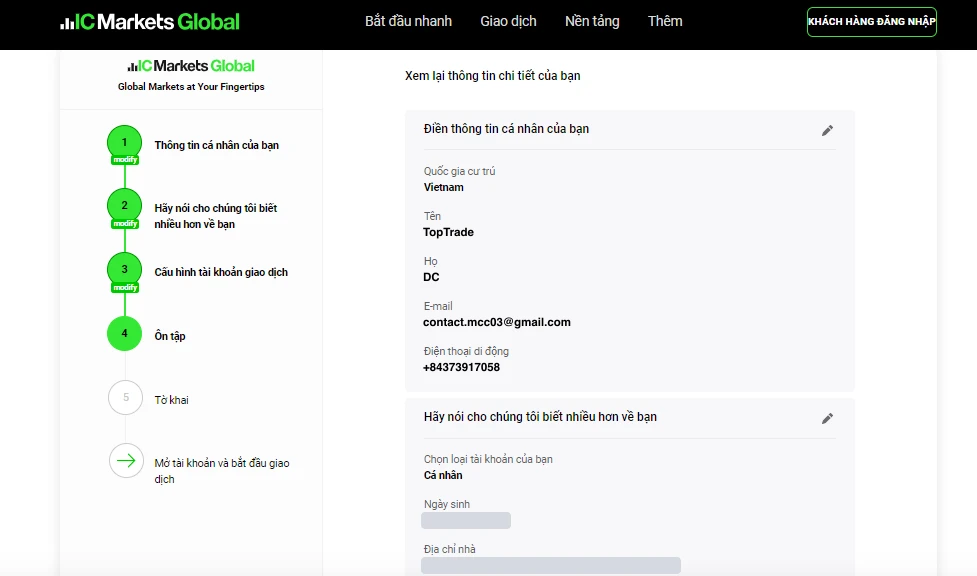
The form asks for basic details such as country of residence, full name, email and phone number. The email should be the trader's own, regularly used inbox, because CTID confirmation and trading account details may be sent there.
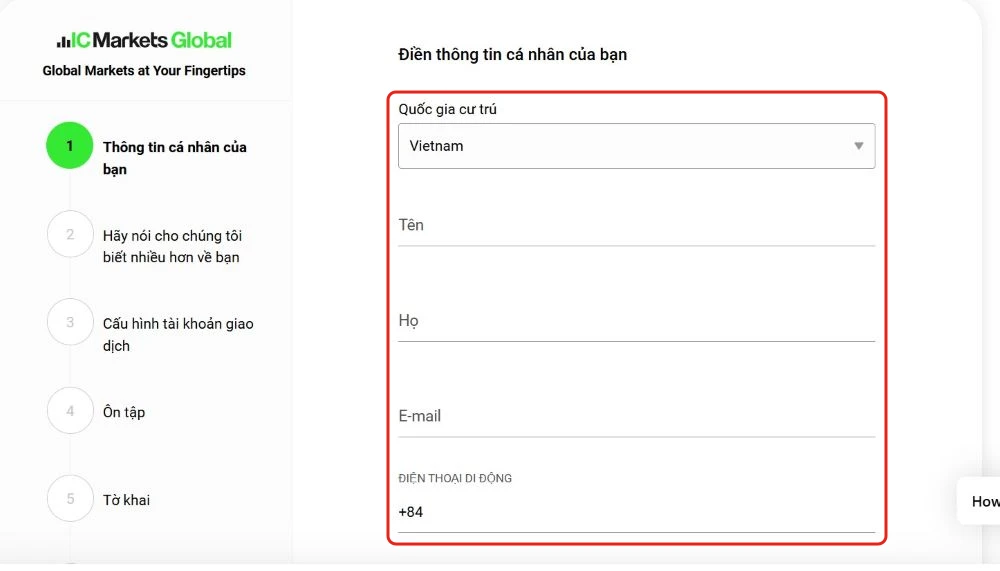
These details need to be accurate and match the trader's ID documents. If they differ, verification or a later withdrawal can easily be delayed or rejected.
Step 3: Choose the cTrader platform
This is the most important step of the whole process. If the goal is to download and use cTrader at IC Markets, the trader must choose cTrader as the trading platform rather than MetaTrader 4 or MetaTrader 5.
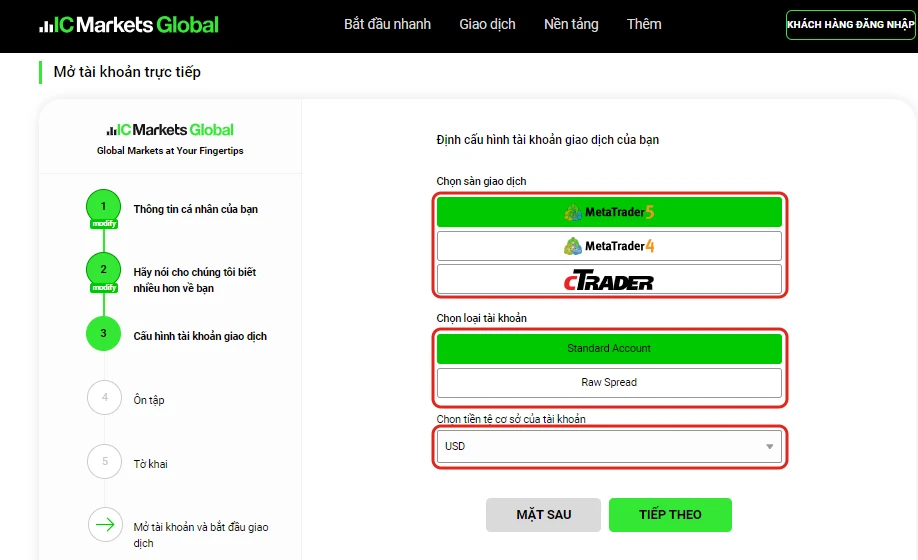
Step 4: Choose the account type
After choosing cTrader, the trader picks the account type that fits their trading. Depending on the interface and conditions at the time, the options usually involve Raw Spread or Standard.
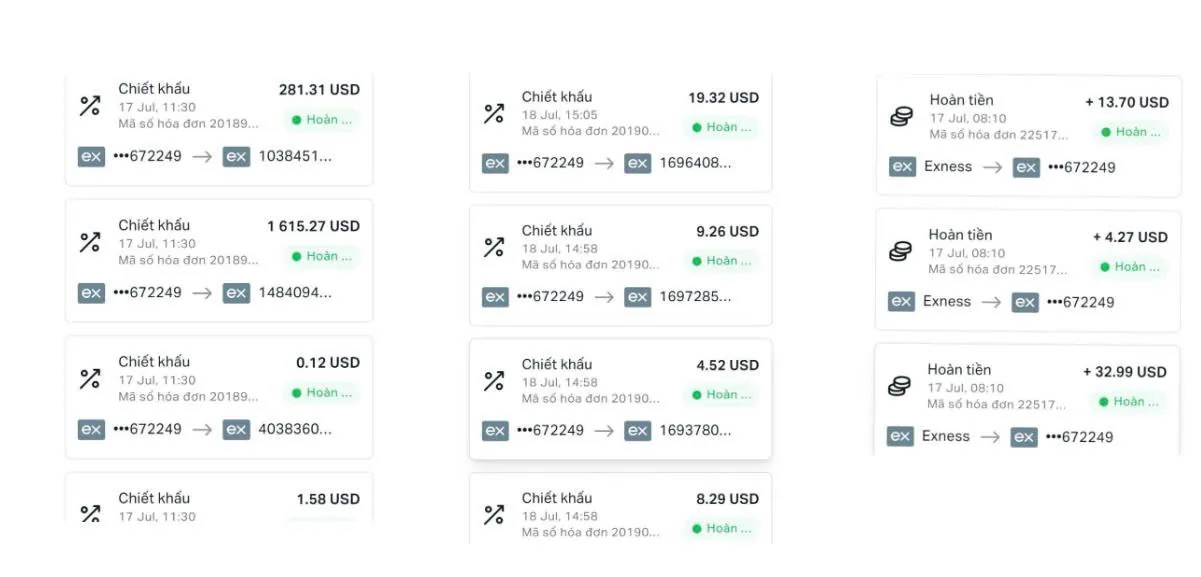
When the account is opened through BackcomHub and the broker links it to the correct IB, the trader receives backcom at one flat rate for all symbols. Figures dated 18/10/2026, paid daily:
- Raw Spread: 2 USD/lot;
- Standard: 4 USD/lot.
A higher rebate does not mean a cheaper account, because the two account types carry different base costs. So traders should compare net cost, as explained in Standard vs Raw Spread accounts. BackcomHub is an IB of the brokers listed on the site, including IC Markets, and receives IB commission from them; the rebate paid to traders comes out of that commission.
Step 5: Verify the account
Once the details are in, IC Markets may ask for proof of identity and address. The trader should prepare clear, unedited document images with matching information, then upload them in the client area.
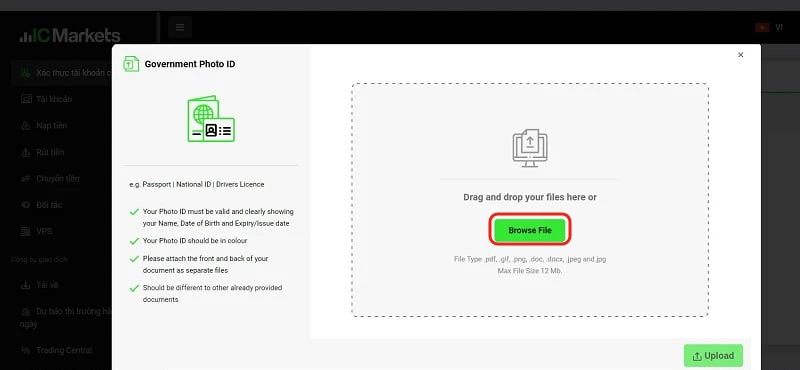
Once the account is verified, depositing, withdrawing and using the trading account become much smoother. That is why this step is best completed before the first deposit.
Downloading and installing cTrader Desktop
With a cTrader account in place, the trader can download and install cTrader Desktop on a computer. This version suits traders who trade often, need large charts and want steadier operation than a browser offers. The process has six steps.
Step 1: Log in to the client area
The trader logs in to the IC Markets client area with the email and password used at sign-up. This is where trading accounts, the profile, funding and platforms are managed. If unsure which link to use, the trader can go to the official website at https://www.icmarkets.com/ or the IC Markets button on the BackcomHub home page.
Step 2: Find Trading Tools or Downloads
Once inside, the trader looks for Trading Tools, Downloads, Platforms or a similar section about trading platforms. The section name may change whenever the broker updates its interface, but it is still where MT4, MT5 and cTrader are listed.
Step 3: Choose cTrader
In the platform list, the trader selects cTrader and double-checks to avoid downloading MetaTrader 4 or MetaTrader 5 by mistake. On Windows, the trader picks the cTrader Desktop version that suits the computer. On other devices, cTrader Web or cTrader Mobile is worth considering.
Step 4: Download the cTrader Desktop file
The trader clicks to download the cTrader installer. Usually the file ends up in the Downloads folder or in whatever location the trader chose when downloading.
Step 5: Install cTrader
When the download finishes, the trader opens the installer and follows the on-screen instructions. The process is usually simple, because the system handles most of the necessary steps itself. Once installed, the cTrader icon appears on the desktop or in the app list.
Step 6: Open cTrader after installing
The trader opens cTrader, and at this point the software usually asks for a login with an email or cTrader ID. If the CTID has not been confirmed yet, the trader needs to check the registration email and set a password first, following the steps in the next section.
Confirming the cTrader ID
This part is essential when using cTrader at IC Markets. Without a confirmed CTID, a trader can download and install the software successfully and still be unable to log in. Confirmation takes four steps.
Step 1: Check the IC Markets registration inbox
Once the cTrader account has been created, the trader checks the inbox used to register with IC Markets. Even the final screen of the registration form reminds users to check their mailbox for login details. The system may send an email about the cTrader ID or an invitation to set a CTID password.
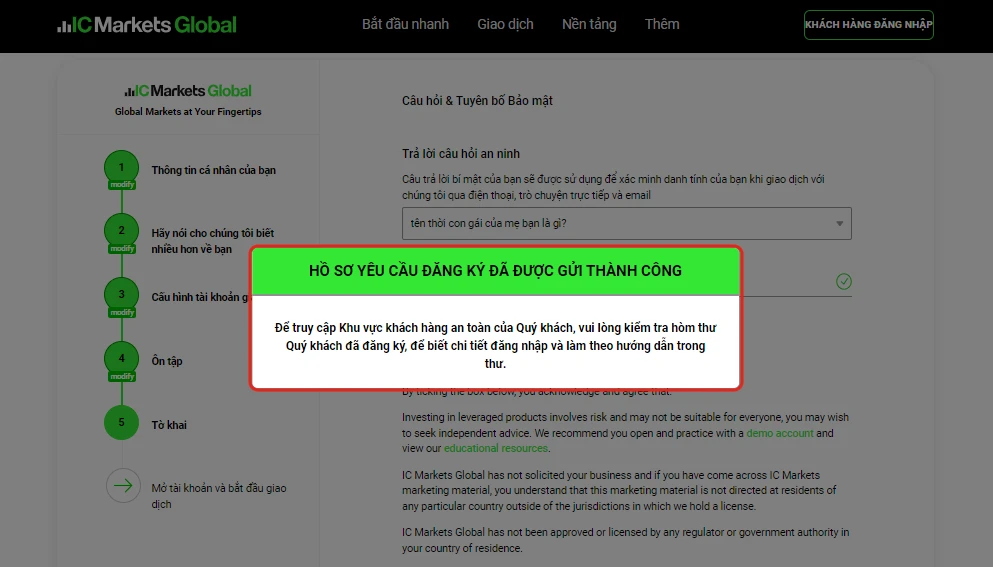
If the email is not in the main inbox, the trader should also look in the spam, promotions or updates folders. Mail filters often move automated messages from brokers there.
Step 2: Open the CTID password email
In the email, the trader looks for the part about confirming the cTrader ID or setting a CTID password. There is usually a button or link to click to create the password. Even so, the trader should click only when sure the email comes from the right sender, and ignore unfamiliar messages or links of unclear origin.
Step 3: Create the cTrader ID password
After opening the confirmation link, the trader creates a password for the cTrader ID. This password is used to log in to cTrader and may differ from the IC Markets client area password.
The password should be strong, easy for the account holder to remember but hard for others to guess. In addition, it should not be the same as the trader's email or bank password.
Step 4: Log in with the CTID
Once set up, the trader uses the email or cTrader ID with the new password to log in to cTrader Desktop, cTrader Web or cTrader Mobile. All three versions share this one set of login details.
If the login works but no IC Markets trading account appears, the trader should check whether the account was actually created on the cTrader platform. Another possibility is that the trader logged in with the wrong email.
Using cTrader Web without installing
Traders who prefer not to install software can use cTrader Web directly in a browser. This is handy on a borrowed computer, when nothing extra should be installed, or for a quick account check. The Web version usually has four main areas:
- Trade: manual trading and order placement;
- Copy: copying other traders' strategies;
- Automate: automated trading;
- Analyze: tracking and analysing account performance.
The strengths of cTrader Web are no installation, quick access, a modern interface and use across many devices. However, for traders who trade often, cTrader Desktop may still be steadier and more convenient.
Frequently asked questions
Is an account needed before downloading cTrader?
Not if the trader only wants to download the software to look at the interface. But to trade at IC Markets, the trader should open a cTrader account first to have a CTID and account details.
What is a cTrader ID?
A cTrader ID, or CTID, is the login account for the cTrader platform. When a cTrader account is created, the trader may receive an email to set a CTID password, then use those details to log in to cTrader.
What if the CTID email never arrives?
The trader should look in the inbox, spam, promotions or updates folders. If it is still missing, the trader should check the email used at registration, or ask BackcomHub via the Telegram or email listed on the home page for help.
Should traders use cTrader, MT4 or MT5?
The answer depends on trading habits. Traders who like a familiar interface, use many older EAs and mainly trade forex can still pick MT4. Those who want a newer platform in the MetaTrader family should consider MT5. For traders who like a modern interface, Depth of Market, cTrader Copy and a more visual experience, cTrader is well worth trying.
Key points
Getting the IC Markets cTrader download link is about more than installing a program. To use it properly, the trader opens an IC Markets account first, chooses cTrader as the platform, confirms the cTrader ID, and only then installs cTrader Desktop, uses cTrader Web or logs in on cTrader Mobile. For help opening an account, traders can contact BackcomHub via the Telegram or email listed on the home page.
Sources
- IC Markets, official website: https://www.icmarkets.com/
- cTrader (Spotware), official website: https://ctrader.com/
- BackcomHub rebate table, IC Markets figures dated 18/10/2026, sourced from dctoptrade.vn
- DCtoptrade (screenshots): https://dctoptrade.vn/