IC Markets MT5 Download and Setup
Download MetaTrader 5 for IC Markets from official sources, open an MT5 Raw Spread or Standard account, install it and log in with account, password and server.
Right after opening an IC Markets account, many traders go looking for a MetaTrader 5 download so they can trade on a computer or a phone. The software, however, is only half of the picture. For MT5 to work with IC Markets, a trader also needs a trading account created on the MetaTrader 5 platform, together with the account number, password and server name the broker issues.
The sections that follow take the steps in the order a newcomer meets them: what MT5 is and how it differs from MT4, why the account should come first, how to open an MT5 account at IC Markets, how to download and install the software, and how to log in. The last part covers the questions that come up most often when MT5 refuses to connect.
What MT5 at IC Markets means
MetaTrader 5, usually shortened to MT5, is trading software developed by MetaQuotes and offered by IC Markets to its clients. In other words, "IC Markets MT5" simply means the MT5 software connected to a trading account held at IC Markets. The platform came after MT4 and is aimed at traders who want a newer platform with more analysis tools and access to a wider range of products.
Compared with the previous generation, MT5 adds several notable features. Specifically, it supports more order types, offers a richer set of charting and analysis tools, includes a Depth of Market panel (a table showing the volume waiting to buy and sell at each price level), comes with an improved Strategy Tester, and uses the MQL5 language for writing trading robots. MT4, meanwhile, keeps a loyal following thanks to its familiarity and its long-established library of EAs.
How MT5 differs from MT4
The two platforms have almost the same name but cannot stand in for each other, so traders benefit from knowing the main differences before downloading. MT4 is the familiar choice of traditional forex traders: the interface is compact and easy to learn, and the community has used a large number of EAs (programs that place trades automatically) and indicators written for it over many years. MT5, by contrast, was designed to handle multi-product trading better and comes with extra tools.
The key differences can be grouped as follows:
| Criterion | MT4 | MT5 |
|---|---|---|
| Generation | Older | Newer |
| EA programming language | MQL4 | MQL5 |
| Depth of Market | Not available | Available |
| Strategy Tester | Basic version | Improved version |
| Focus | Traditional forex, familiar interface | Multi-product, more tools |
Beyond the table, one practical point often catches newcomers out: an account created for MT4 cannot log in to MT5, and an MT5 account cannot log in to MT4 either. For that reason, traders who are used to MT4 and rely on many older EAs or indicators may still be better served by MT4. Traders who want a newer platform with more tools, and who plan to trade several kinds of products, have good reason to consider MT5.
Why the account comes first
Technically, nothing stops a trader from downloading MT5 before opening an account. Still, the downloaded software is only a shell, because placing orders with IC Markets requires an MT5 account at that broker to log in with. Without an account, MT5 shows charts and quotes but cannot trade with IC Markets.
This explains why so many people install the software and then get stuck, unsure which account to enter, which server to pick, or why MT5 shows an error. On top of that, the platform has to be chosen correctly at the moment the account is opened. IC Markets offers MetaTrader 4, MetaTrader 5 and cTrader, and an account created for MT4 or cTrader will not log in to MT5 in the usual way. The sensible order is therefore to open the MT5 account first and download the software afterwards.
Opening an MT5 account at IC Markets
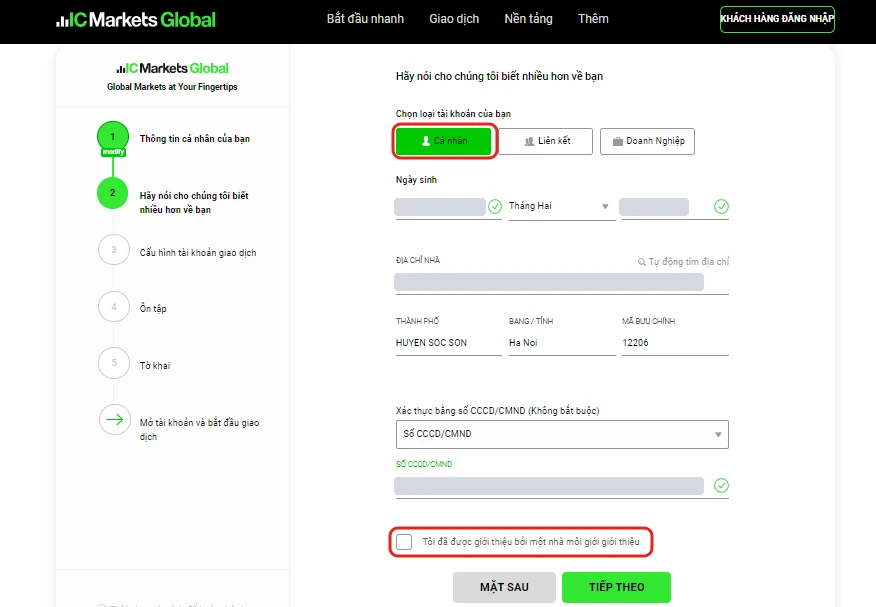
The first task in using MT5 with IC Markets is to obtain a trading account tied to the MetaTrader 5 platform. The process has five steps, and choosing the platform is the one where mistakes happen most.
Step 1: go to the account opening page
New traders can click the IC Markets sign-up button on BackcomHub to reach the broker through the link carrying partner code 91994, or go to the official IC Markets website themselves. There, the trader chooses a live account or a demo account, meaning one that trades with virtual money. For beginners, a demo account is a safe way to try the MT5 interface and practise placing orders before depositing real funds.
Step 2: fill in personal details
The registration form asks for basic details, including country of residence, full name, email and phone number. The email should be a personal inbox the trader checks regularly, since IC Markets sends account details, verification requests and important notices there.
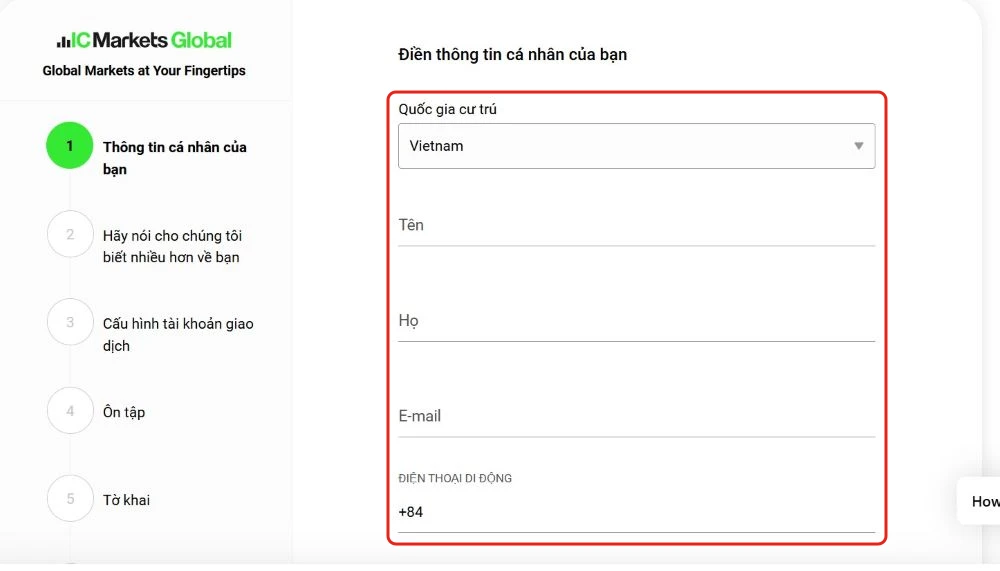
All details should match the trader's identity documents exactly. That way, the trader avoids problems when the broker verifies the account, and again when withdrawing money later.
Step 3: choose MetaTrader 5
In the account configuration section, the trader needs to select MetaTrader 5 as the trading platform. This is the decisive step, because choosing the wrong option produces an account that will not work with the MT5 software. Specifically, a MetaTrader 4 account logs in only on MT4, while a cTrader account has its own login through the cTrader software.
Step 4: choose Raw Spread or Standard
In the same configuration section, after selecting MT5, the trader picks an account type. The two common types are Raw Spread and Standard. Raw Spread usually suits traders who care about a low spread, meaning a narrow gap between the buy and sell price, and who accept paying a commission, which is a fixed fee per lot. Standard is easier for beginners, because the cost sits mainly in the spread. How to compare the total cost of the two is covered in Standard vs Raw Spread accounts.
The account type also sets the rebate rate when a trader opens through BackcomHub and the account is recorded in the correct partner network. According to the BackcomHub rebate table, with figures dated 18/10/2026, the rates, paid daily, are:
| IC Markets account | Rebate |
|---|---|
| Raw Spread | 2 USD/lot |
| Standard | 4 USD/lot |
BackcomHub is an IB of the brokers listed in its rebate table, IC Markets among them, and receives IB commission from these brokers; the rebate paid to traders comes out of that commission. The idea of a rebate is explained in more depth in what is backcom. Traders who already hold an IC Markets account opened another way can read the guide on switching IB.
Step 5: verify the account
After the form is submitted, IC Markets may ask for proof of identity and address. Uploaded documents should be sharp, match the details entered, and never be edited in any way.
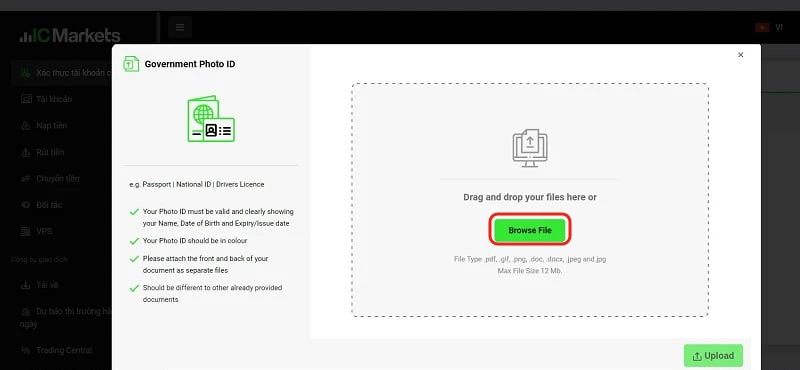
Once the account is verified, later actions such as depositing, withdrawing and using the trading account go more smoothly. At this point the trader holds the most important piece, an MT5 account, and can move on to downloading the software.
Downloading and installing MT5 for IC Markets
With an MT5 account in place, what remains is getting the software onto the device. The download should come from the client area or from the MetaTrader 5 page on the official IC Markets website, rather than from shortened links or files passed around online.
Step 1: log in to the client area
The trader logs in to the Client Area with the email and password used at registration. This is where everything about the account is managed, from the personal profile and trading accounts to deposits, withdrawals and trading platforms. A trader unsure of which address to use can start from the official IC Markets website.
Step 2: find the trading platforms section
Inside the client area, the trader looks for the section on trading platforms, trading tools or software downloads. The label can change with each version of the interface, but it is usually tied to MT4, MT5, cTrader or the words Trading Tools.
Step 3: pick MetaTrader 5
The platform list shows MT4, MT5 and cTrader side by side, so the trader should read carefully before clicking download to avoid grabbing the wrong one. The rule is simple: an MT5 account always logs in through the MT5 software. Entering an MT5 account into MT4, on the other hand, usually just returns an error.
Step 4: download the installer
Next, the trader downloads the MT5 installer. On Windows this is usually a file ending in .exe; on a Mac, the trader picks the Mac version or follows the matching installation guide. Saving the file to an easy-to-find folder such as Downloads or Desktop saves searching for it later.
Step 5: install the software
Finally, the trader opens the downloaded file and follows the on-screen steps. Installation is usually quick. When it finishes, the MetaTrader 5 icon appears on the desktop or in the app list, and the trader opens it to log in to the IC Markets account.
Logging in to IC Markets on MT5
The software is installed but does not yet know which account to use, so the last step is logging in with three pieces of information from the broker: the account number, the trading password and the server. If any one of them is missing or wrong, MT5 will not connect.
Step 1: open MetaTrader 5
The trader launches MT5 on the computer. On first launch, the software may open a few default windows such as the server list, charts or the quotes panel, which the trader can close if they are not needed yet.
Step 2: choose Login to Trade Account
From the menu bar, the trader selects File and then Login to Trade Account. This is the option for adding a live or demo account to MT5, and it opens a login box with three fields: Login, Password and Server.
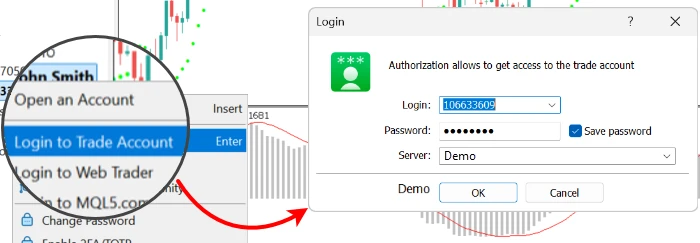
Step 3: enter the account number
The Login field takes the MT5 account number issued by IC Markets. This is where most mix-ups happen, because the number is not the email used for the client area but a separate ID for the trading account. Traders can find it in the account opening email or in the IC Markets client area.
Step 4: enter the trading password
The Password field takes the trading password for the MT5 account. This password may differ from the client area password, so using the wrong one is a common reason for MT5 to show Invalid Account or fail to connect.
Step 5: choose the correct server
The server matters just as much as the other two fields. In practice, even with the right account number and password, picking the wrong server still locks the trader out. The exact server name is in the account details email or the client area. With all three fields filled in, the trader clicks Login.
After a successful login, prices in Market Watch start to move, charts update continuously and the connection status appears in the corner of the software. Those signs show that MT5 is linked to the IC Markets account and ready to trade.
Frequently asked questions
Is the MT5 download for IC Markets free?
Yes. MetaTrader 5 can be downloaded at no cost, but trading on IC Markets still requires an MT5 account at the broker and a login with the issued account number, password and server.
What if the IC Markets server does not appear?
First, the trader should check the account details email or the client area for the exact server name. If it still cannot be found, the account is probably not an MT5 account, so the platform chosen at sign-up needs checking.
Can orders be placed straight after installing MT5?
Orders can only be placed after a successful login to the IC Markets MT5 account. For a live account, the trader must also complete verification and make a deposit before trading with real money.
Does IC Markets MT5 work on a phone?
It does. Traders install the MetaTrader 5 app on Android or on an iPhone or iPad, search for the IC Markets server in the app, and log in with the MT5 account just as on a computer.
Should traders pick MT4 or MT5 at IC Markets?
It depends on trading habits. Traders used to the MT4 interface, relying on many older EAs or indicators and trading mainly forex can stay with MT4. Those who want a newer platform with more tools and better multi-product support should consider MT5.
Key takeaways
Using MT5 with IC Markets properly follows a clear sequence. The trader opens an IC Markets account and selects MetaTrader 5 from the start, downloads the software from an official source, then logs in with the account number, trading password and server issued by the broker. Most "cannot log in" errors come from a slip in one of those stages, such as opening an MT4 account by mistake or choosing the wrong server. For help with opening an account, finding the server or fixing a login error, traders can message BackcomHub via the Telegram or email listed on the home page.
Sources
- IC Markets, MetaTrader 5 page on the official website: https://www.icmarkets.com/global/en/trading-platforms/metatrader-5
- MetaQuotes, MetaTrader 5 website: https://www.metatrader5.com/
- BackcomHub rebate table, IC Markets figures dated 18/10/2026, sourced from dctoptrade.vn
- DCtoptrade (screenshots): https://dctoptrade.vn/