MT4 Exness Download and Setup
Where to get the official MT4 Exness download, how to open an MT4 account, install it on desktop or mobile and log in to the right server without errors.
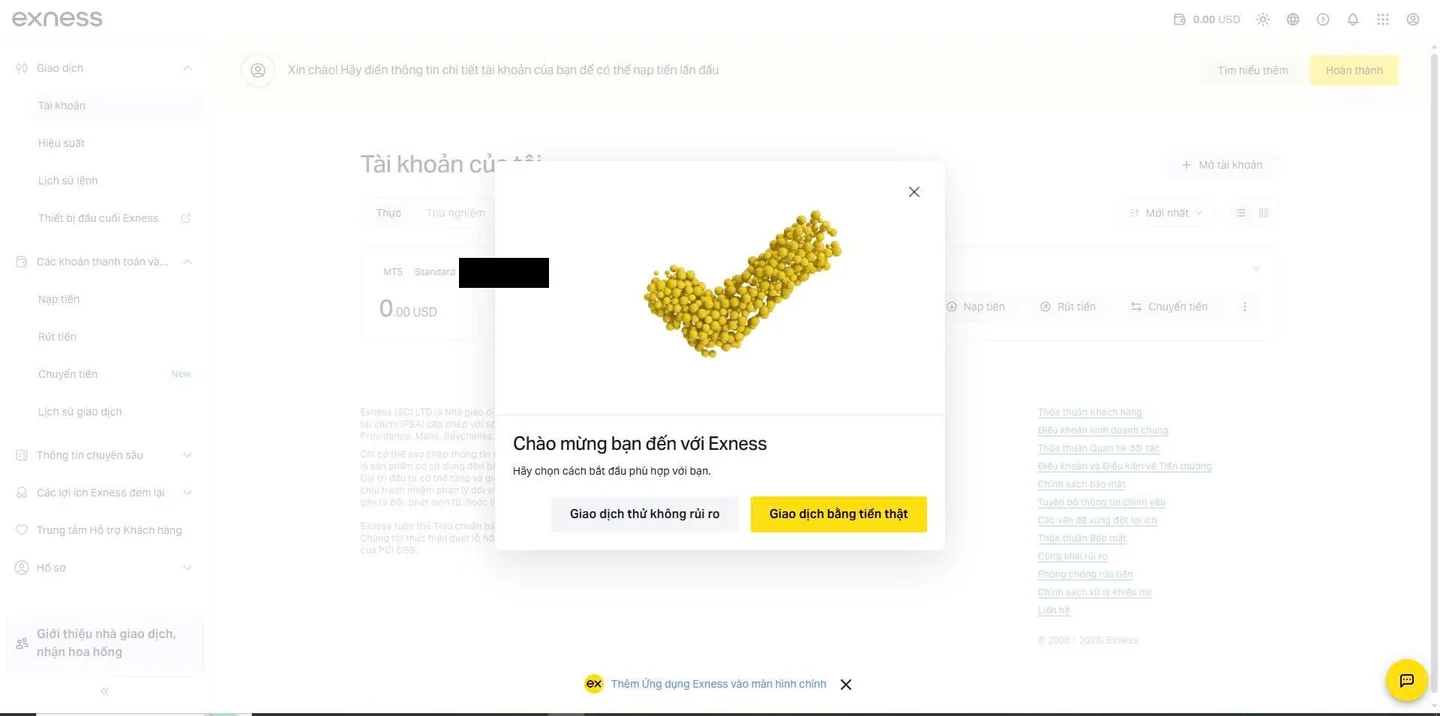
After signing up with Exness, the first thing many new traders do is look for MetaTrader 4 so they can trade on a computer or phone. Trouble often follows straight away, when the software is installed but refuses to open the account. The usual causes are picking the wrong server, installing a file from a doubtful source, or simply not having a trading account to log in to yet.
The sections that follow cover where to get a safe MT4 Exness download, how to open an account on the MT4 platform, how to install and log in on each device, and the mistakes beginners tend to make along with their fixes. A set of common questions closes the guide, from whether the software costs anything to using MT4 on a phone.
Where to download MT4 safely
The most reliable place to get the MT4 installer is the official Exness website, or the Personal Area once a trader has an account. Downloading from either one guarantees the file has not been altered or bundled with malware. On a phone, the equivalent sources are the official Google Play and App Store.
By contrast, unknown links, files passed around in Telegram or Facebook groups, and websites with no clear owner should all be ignored. The reason is that MetaTrader 4 holds login details and directly controls trades on an account that holds real money. A tampered installer could record passwords, so with this software, using the right source is a requirement rather than a suggestion.
For anyone planning to trade Exness on MT4, the cleanest order has three linked steps. First, open the Exness account; next, choose MetaTrader 4 when creating the trading account; only then download the software and log in with the details shown in the Personal Area. Following that order means everything needed is already at hand the first time MT4 opens.
What MT4 Exness actually is
MT4, short for MetaTrader 4, is a trading platform written by MetaQuotes Software. Exness and most forex and CFD brokers worldwide use it as their main platform. So "MT4 Exness" is not separate software built by Exness; it is the standard MetaTrader 4 configured to connect to Exness servers.
On MT4, traders can trade forex, metals, indices and other CFDs. The software also runs Expert Advisors (EAs), which are robots that place trades according to an algorithm, and it supports custom technical indicators and charts across many timeframes. Those features keep MT4 popular, even though Exness also offers MT5 and its own app called Exness Trade. Traders weighing the newer platform can read the MT5 Exness download guide.
Account first or software first
The order of these two tasks does not matter, because the MT4 software can be downloaded at any time. What counts is the login, when the trader needs the account number (Login), the trading password and the exact server name. Those three details only exist once an Exness trading account has been created.
Steps to open an MT4 Exness account
Opening an account on the MT4 platform takes five steps:
- Click the Exness sign-up button on the BackcomHub home page, or enter the partner code oc9jb1aix4 in the partner code field on the form, so the account is linked to BackcomHub and earns backcom later.
- Fill in personal details and select the country of residence.
- When creating the trading account, choose the MetaTrader 4 (MT4) platform.
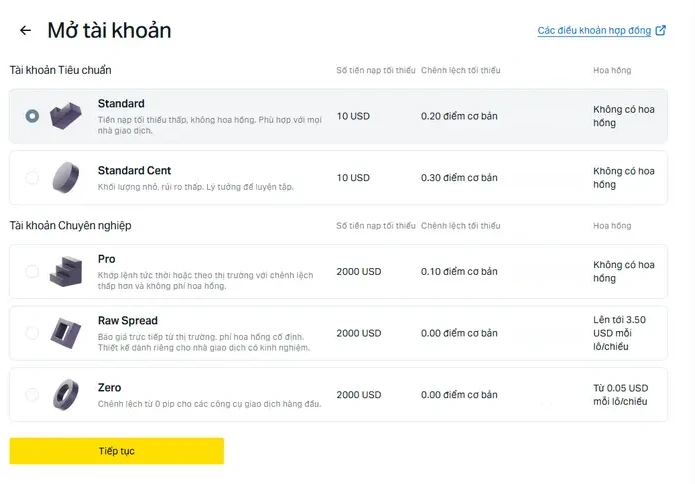
- Choose one of four account types: Standard, Standard Cent, Pro or Raw Spread. Active traders should read Standard vs Raw Spread accounts before deciding.
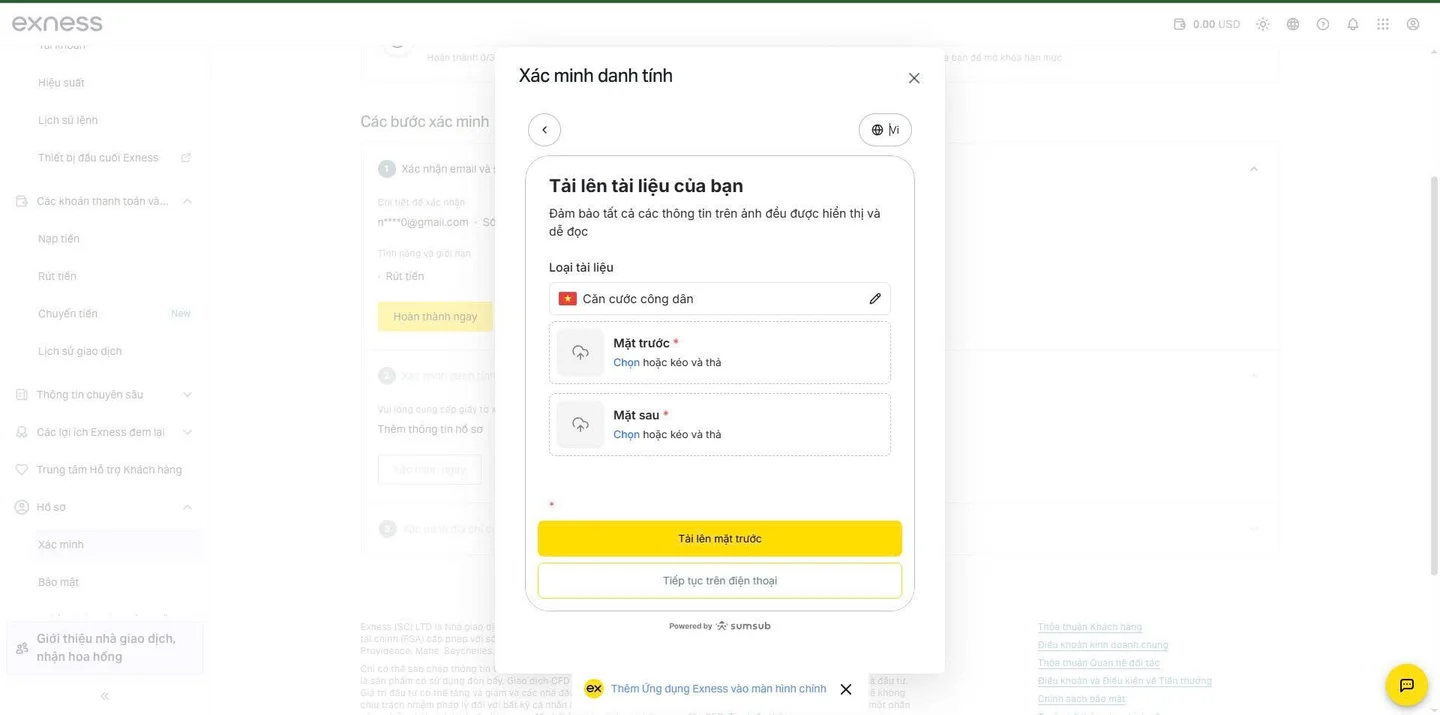
- Complete identity verification (KYC) so the account is fully activated.
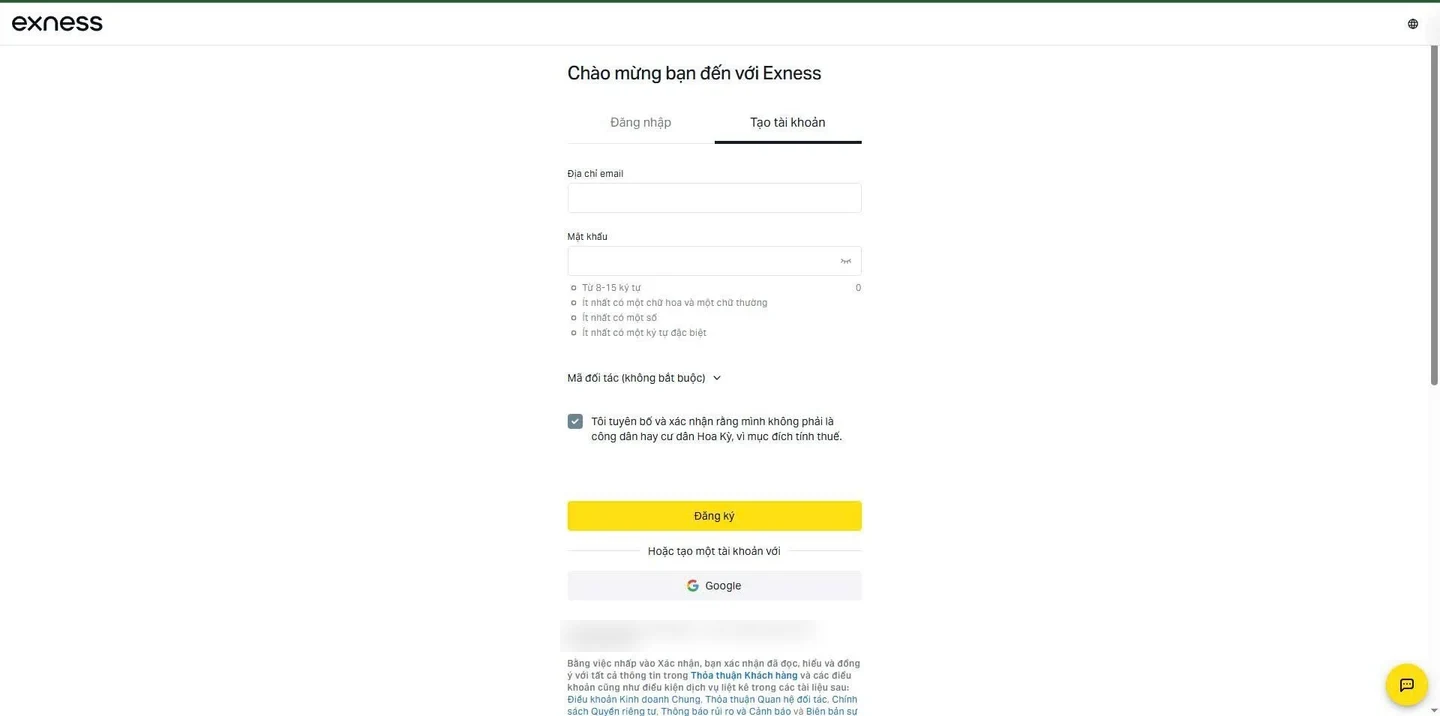
At the account type step, Exness shows each type as a separate card for comparison. Each type charges fees differently, so the rebate for each type differs too; the exact figures are in Exness rebates.
The verification step needs clear photos of an ID document, such as both sides of a national ID card. As for BackcomHub, the site is an IB for the brokers it lists, including Exness, and receives IB commission from them; the backcom paid to traders comes out of that commission. How the rebate is claimed is explained in Exness backcom.
Installing MT4 on each device
Once the account is ready, the software comes straight from the Personal Area in five steps:
- Log in to the Personal Area on the Exness website.
- Open the Platforms section.
- Choose MetaTrader 4, then the version for the device in use, which is Windows, macOS, iOS or Android.
- Download the MT4 installer.
- Run the downloaded file and follow the on-screen prompts until installation finishes.
On a phone, the quicker route is to install the MetaTrader 4 app directly from Google Play or the App Store. Then, in the app's account management section, the trader chooses the option to log in to an existing account and adds the Exness account.
Logging in to Exness on MT4
After installation, the next question almost everyone faces is what to enter to reach the right Exness account. On desktop, the process has five steps:
- Open the newly installed MetaTrader 4.
- Go to the File menu and choose Login to Trade Account.
- Type the MT4 account number (Login), taken from the Exness email or the Personal Area.
- Type the trading password. This password belongs to the trading account and is different from the one used for the website.
- Pick the Exness server that matches the account, for example something like Exness-Real or Exness-Trial. The exact name is shown in the Personal Area and is not the same for every account.
Among login errors, choosing the wrong server tops the list. Each account type, such as Standard, Pro or Raw Spread, and each Exness entity serving a given region can run on a differently named server. So when in doubt, traders should reopen the account confirmation email or the Personal Area, copy the exact server name and only then enter it in MT4.
Using MT4 WebTrader instead
MT4 WebTrader is a version that runs inside a web browser, with nothing to install. It is handy on a public computer or for a quick look at the account. However, WebTrader usually lacks some advanced features of the full version, most notably the ability to run EAs. That is why frequent traders and robot users are still better off with the desktop installation.
Tips for using MT4 Exness
Beyond the steps above, a few habits save trouble later:
- Download MT4 only from the Exness website or the official app stores, never from unknown links.
- Record the account number, trading password and server name as soon as the account opens, because missing any one of the three blocks the login.
- When running EAs, host MT4 on a virtual private server (VPS) so the robot works around the clock and is not cut off when a home computer shuts down or loses its connection.
- Before trading real money, understand how leverage works in order to manage risk; the basics are in forex leverage for beginners.
- If connection errors appear or the server is missing from the list, contact Exness support to have the account checked.
Most of these tips take only a few minutes at the start, yet they spare traders a lot of fumbling later.
Frequently asked questions
Does the MT4 Exness download cost anything?
Downloading and using MetaTrader 4 is completely free. The only thing a trader needs is a registered Exness trading account to log in with.
Must the account be opened before downloading MT4?
That is not required, since the software can be downloaded ahead of time. To trade for real, however, the trader needs an account with a Login number, password and exact server name.
Can an MT5 Exness account log in to MT4?
An MT5 account cannot log in to MT4, and the reverse is also true. The two platforms run on separate server systems, so an account opened on MT5 must use the MetaTrader 5 software.
What if the Exness server cannot be found?
Traders should look up the server name in the confirmation email or the Personal Area, because not every account shares the same server. Once the exact name is at hand, it can be typed into MT4 manually.
Can trading start right after installing MT4?
Trading can start as soon as the login succeeds, provided a live account has been funded and fully verified. A demo account, on the other hand, can trade straight away with no real deposit.
Can MT4 Exness be used on a phone?
On a phone, traders install the MetaTrader 4 app from the App Store for iOS or Google Play for Android. They then log in with the same account details used on the computer.
Key points
Setting up MT4 Exness is not difficult when the installer comes from an official source and the trader has the three login details ready: account number, trading password and server name. Most failed logins trace back to the wrong server or a mix-up between MT4 and MT5 accounts. Spending a minute checking the details in the Personal Area before logging in is therefore the simplest way to avoid both errors.
Traders without an account can register with Exness through the button on the BackcomHub home page, so they can use MT4 and also get part of their trading fees back. This guide is technical help, not investment advice, and trading forex or CFDs always carries a risk of losing capital.
Sources
- Exness, official website: https://www.exness.com/
- MetaQuotes, MetaTrader 4 page: https://www.metatrader4.com/
- DCtoptrade (screenshots): https://dctoptrade.vn/