MT5 Exness Download and Server Login
Get the official MT5 Exness download, pick the right platform at sign-up, install it, log in to the right server and tell MT5 apart from MT4 and Exness Trade.
Traders who pick MetaTrader 5 (MT5) when opening an Exness account usually stumble in two places. The first is not knowing where the official installer sits among countless links floating around. The second comes after installation, when the software shows an error and will not open the account, which in most cases means the wrong server was entered or an account from the other platform was used.
The sections that follow walk through a safe source for the MT5 Exness download, how MT5 differs from MT4 and the Exness Trade app, how to open an account on the right platform from the start, and then installation, login and common errors. The closing questions deal with points such as whether an MT4 account can be switched to MT5 and which platform to pick.
Where to get the MT5 Exness installer
The MT5 installer should come only from the official Exness website, or from the Personal Area once the trader has registered. That is the surest way to know the file has not been tampered with or loaded with malware. On a phone, the official Apple and Google app stores play the same role.
Links sent through Telegram, other messaging apps or websites of unknown origin, on the other hand, should never be opened. MetaTrader 5 connects directly to the trading account, so a fake installer could steal passwords and reach real money. The sensible approach is therefore to open the Exness account first, choose MetaTrader 5 when creating the trading account, and then download the software and log in with the details the broker issues.
What MT5 is and how it differs from MT4
MT5, or MetaTrader 5, is the upgrade to MetaTrader 4 and is also developed by MetaQuotes Software. Compared with MT4, it can trade more asset classes, such as stocks and futures. MT5 also adds more order types, more timeframes and more analysis tools.
The difference traders most need to remember, however, concerns accounts: MT4 and MT5 accounts cannot be shared. At Exness, the two platforms run on two separate server systems. That means an account created on MT5 must log in through MT5 software, and MT4 software will not accept it. Alongside MetaTrader, Exness also has its own app called Exness Trade, which works with MT5 accounts and allows trading inside the broker's app.
Is an account needed before downloading
The MT5 software can be downloaded before or after opening the account, and the order makes no difference. What is mandatory is a trading account created under the MT5 platform. With it, the trader needs the account number (Login), the trading password and the exact MT5 server name Exness assigns to the account.
Opening an MT5 Exness account
Opening an account on the MT5 platform takes five steps:
- Click the Exness sign-up button on the BackcomHub home page, or enter the partner code oc9jb1aix4 on the sign-up form, so the account sits under BackcomHub and qualifies for backcom.
- Fill in personal details and choose the country of residence.
- On the trading account setup screen, choose the MetaTrader 5 (MT5) platform. This is the easiest place to go wrong, since many people accidentally leave MT4 selected.
- Choose one of the Standard, Standard Cent, Pro or Raw Spread account types; the two fee models are compared in Standard vs Raw Spread accounts.
- Verify identity (KYC) so the account is fully activated.
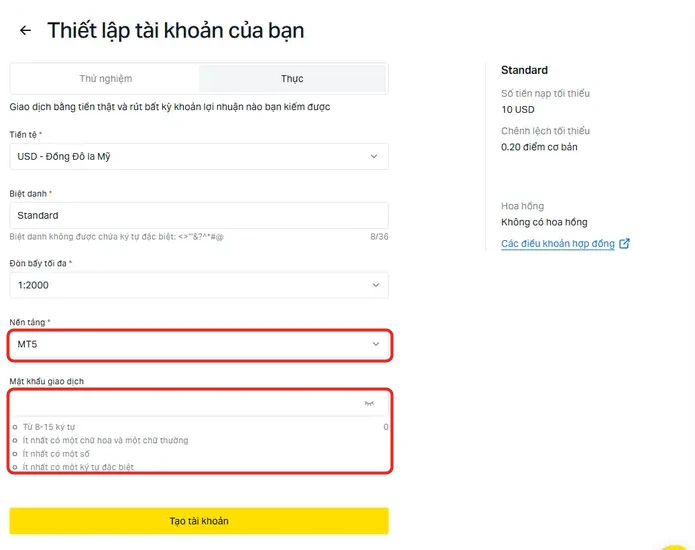
The setup screen in step 3 is also where the trader sets the trading password, which is the password used to log in to MT5. It is separate from the website password, so it is worth writing down right away. As for BackcomHub, the site is an IB for the brokers it lists, including Exness, and receives IB commission from them; the backcom paid to traders comes from that commission, at the rates shown in Exness rebates.
Downloading and installing MT5 Exness
With an MT5 account in place, the software is downloaded from the Personal Area in five steps:
- Log in to the Personal Area on the Exness website.
- Find the Platforms section.
- Choose MetaTrader 5, then the version for the right device: Windows, macOS, iOS or Android.
- Download the MT5 installer.
- Open the file and follow the prompts until installation is complete.
On a phone, traders can install the MetaTrader 5 app straight from the App Store or Google Play. After opening the app, they choose the option to log in to an existing account and add the Exness MT5 account.
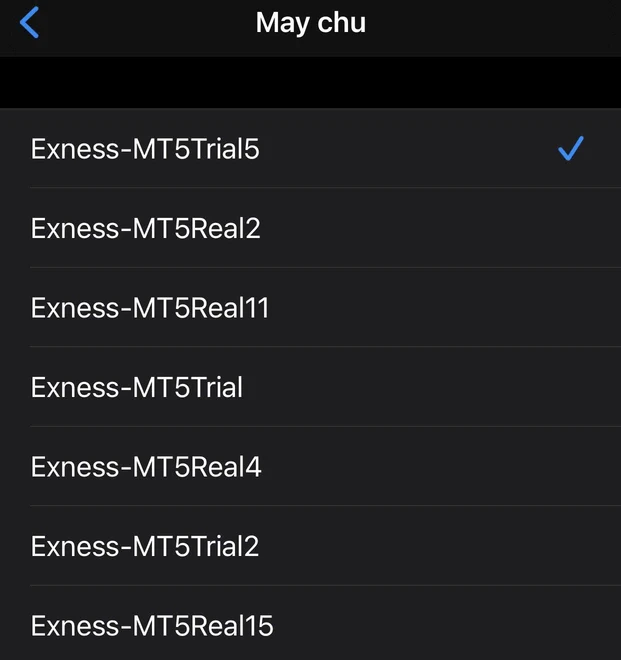
The server list in the app is long, and many names differ by a single digit. For that reason, traders should match the server name recorded on the account rather than picking any line that happens to say Exness.
Logging in to Exness on MT5
On desktop, logging an Exness account in to MT5 takes five steps:
- Open MetaTrader 5 after installation.
- Go to the File menu and choose Login to Trade Account.
- Enter the MT5 account number (Login) from the Exness email or the Personal Area.
- Enter the trading password, not the password used for the Exness website.
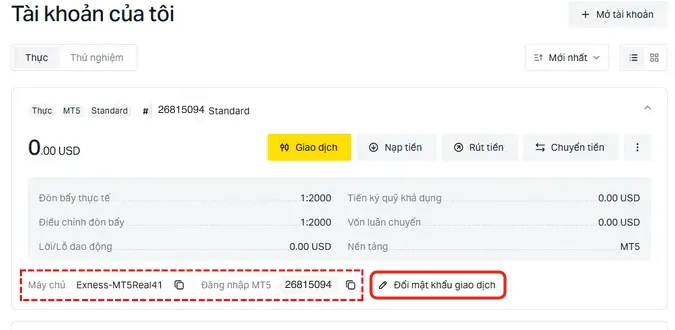
- Choose the Exness MT5 server that matches the account. MT5 servers have different names from MT4 servers, so the exact name should be checked in the Personal Area.
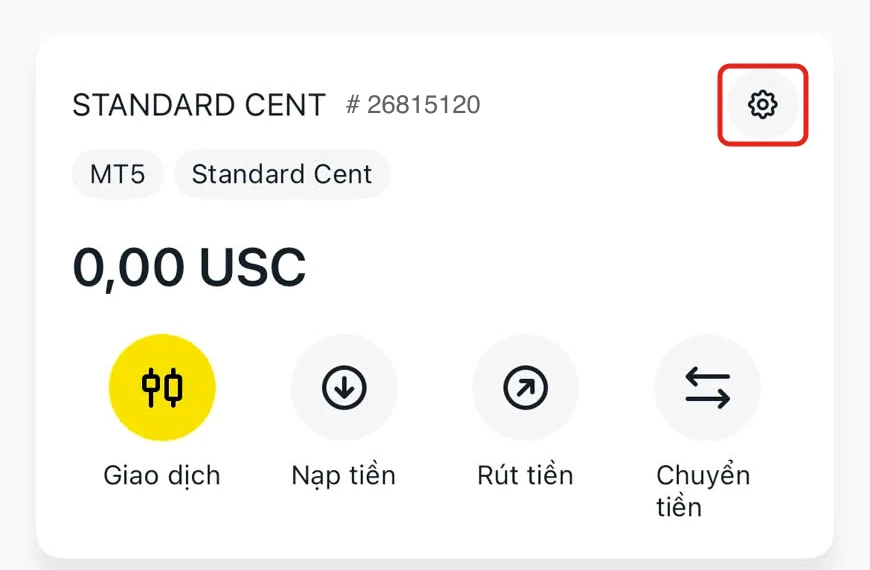
The server name sits right on the account card in the Personal Area. Expanding the card reveals the Server field, the Login field and a button for changing the trading password.
After a successful login, the MT5 title bar shows the account number and server name, while the Navigator window groups accounts by server. Looking at these two places tells the trader at once whether the software has reached the right account.
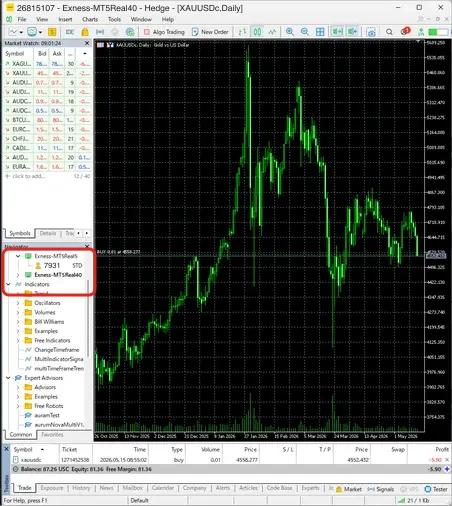
The most common error is still a mistyped server name, or using an MT4 account to log in to MT5 and vice versa. Because the two systems are fully separate, the software returns an "Invalid account" message when the details do not match. The simplest fix is to reopen the account confirmation email to see which platform the account belongs to, then use the matching software and server.
How MT5 and Exness Trade differ
MT5 is the standard MetaTrader software used by a great many forex brokers. Exness Trade, meanwhile, is an app built by Exness itself; it also accepts MT5 accounts but has its own interface and some broker-specific features. Traders used to the classic MetaTrader layout, especially those running EAs (trading robots), therefore tend to suit MT5 better. Those who want a lean interface optimised for phones may prefer Exness Trade instead.
Tips for using MT5 Exness
A few points help traders avoid starting over:
- Download MT5 only from the Exness website or the official app stores, and never open unknown links.
- Settle on MT4 or MT5 when opening the account, because the platform usually cannot be changed afterwards and a new account would be needed.
- When trading with EAs, run MT5 on a virtual private server (VPS) so the robot is not cut off when a personal computer shuts down.
- Before trading real money, understand how leverage magnifies gains and losses, as covered in forex leverage for beginners.
- If connection errors persist or the login fails even after every detail has been checked, contact Exness support.
Of these points, settling the platform matters most, because a wrong choice means every later installation step has to be redone.
Frequently asked questions
Does the MT5 Exness download cost anything?
Downloading and using MetaTrader 5 costs nothing at all. The only condition is that the trader has an Exness trading account registered on the MT5 platform.
Can an MT4 account log in to MT5?
An MT4 account cannot log in to MT5, and an MT5 account cannot log in to MT4 either. The two platforms use separate server systems at Exness, so an MT4 account has to be paired with MetaTrader 4 software.
Can an MT4 account be converted to MT5?
An account running on MT4 cannot be converted directly to MT5. The trader has to open a new trading account and choose MT5 from the start, bearing in mind that the balance and trade history of the old MT4 account will not carry over automatically.
What if the MT5 Exness server cannot be found?
The exact MT5 server name appears in the account confirmation email and in the Personal Area, and it differs from the server names used by MT4 accounts. Traders should check it carefully before typing it into the software.
Can MT5 Exness be used on a phone?
It can, by installing the MetaTrader 5 app from the App Store for iOS or Google Play for Android. The login details on the phone are exactly the same as on the computer.
Should a new Exness account use MT4 or MT5?
MT5 suits traders who want more asset classes, such as stocks and futures, and need stronger analysis tools. MT4, meanwhile, remains popular for its simplicity and good compatibility with existing EAs, and both platforms fully cover basic forex and metals trading. Traders who prefer MT4 can read the MT4 Exness download guide.
Key points
Downloading and installing MT5 Exness is fairly simple when the file comes from an official source and the platform is chosen correctly when the account is opened. The core point is that MT4 and MT5 at Exness are two separate systems: accounts cannot log in across them, and an account cannot be moved between them once created. With that in mind, traders avoid most of the login errors beginners run into.
Traders without an account can register with Exness through the button on the BackcomHub home page and get part of their trading fees back while using MT5; how this works is covered in Exness backcom. This guide is technical help only, not investment advice, and trading forex or CFDs always carries a risk of losing capital.
Sources
- Exness, official website: https://www.exness.com/
- MetaQuotes, MetaTrader 5 page: https://www.metatrader5.com/
- DCtoptrade (screenshots): https://dctoptrade.vn/